Image Search Techniques: Smart Ways to Find Any Picture Online

What Is Image Search?
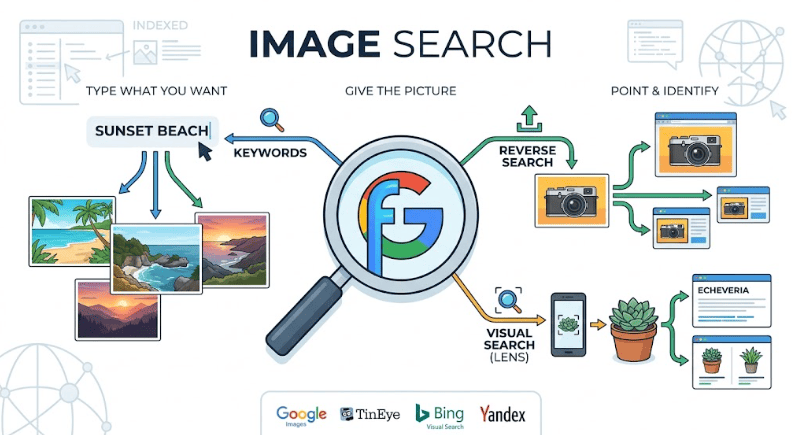
Image search means finding pictures, or information about a picture, through a search engine. You can start with words (a keyword search) or with the picture itself (a reverse image search or visual search). Depending on the method, the result is a list of similar photos, the web pages where an image appears, or a description of what is inside the frame.
There are three ideas worth separating, because mixing them up is the most common reason a search fails:
- Keyword image search: you describe what you want in text.
- Reverse image search: you already have an image and want to know where else it appears online.
- Visual search: you want to know what is in the image, such as a plant, a shoe, a landmark, or a line of text.
How Image Search Works
When you upload a picture, the search engine does not look at it the way you do. AI models turn the image into a set of numbers that describe its shapes, colors, textures, and recognized objects. That numerical fingerprint is compared against billions of images the engine has already indexed, and the closest matches are ranked first.
This is why a good tool can still recognize a photo that has been resized, cropped, or lightly edited. It also explains a common frustration: if your photo contains several objects, the engine may lock onto the wrong one. Several techniques below are built to fix exactly that.
1. Use Specific Keywords, Not Single Words
The simplest of all image search techniques is also the one people do badly. A query like “dog” returns millions of generic results. A query like “golden retriever puppy sitting on grass” gives the engine a subject, an action, and a setting.
A quick formula that works: subject + detail + style or setting. Add words such as “high resolution”, “transparent background”, or “flat lay” when you need a certain kind of picture.
Then use the Tools menu in Google Images to narrow results by size, color, type, and time. A few seconds of filtering usually beats ten minutes of scrolling.
2. Try Reverse Image Search
Reverse image search flips the process. Instead of describing a picture, you give the engine the picture and it shows you where it lives online.
On a computer: open Google Images, click the camera icon, then upload the file or paste an image link.
On a phone: open Chrome, press and hold the image, and choose the option to search with Google.
People use it to check whether a viral photo is real, to find a larger version of a blurry picture, to discover who originally published an image, and to spot sites using their photography without permission.
3. Search with Google Lens
Google Lens turns your phone camera into a search bar. Point it at a plant, a menu in another language, a pair of sneakers, a building, or a page of text, and it returns matches and explanations. It can translate text, copy words out of a photo, and link to shopping results.
You can also run Lens on pictures you already own. Open a saved photo and tap the Lens icon to search it. On many Android phones, Circle to Search lets you draw around anything on your screen and search it without leaving the app you are in.
4. Combine a Picture with Words
Multimodal search lets you use an image and text together. Start with a photo of a blue sofa, then add the word “green” or “leather” to refine it. This works well for fashion, furniture, and decor, where you know the shape you like but want a different color, material, or price.
It is one of the most underused image search tips because it feels odd the first time. Try it once and it quickly becomes a habit.
5. Crop Before You Search
If a first search gives vague or wrong results, crop the image tightly around the one thing you care about and search again. Removing the background, other people, and clutter tells the engine exactly what the subject is.
Searching the same photo cropped three different ways often produces three different, correct answers: the jacket, the chair behind it, and the location. This single step solves more failed searches than any tool upgrade.
6. Use Search Operators and Advanced Filters
Search operators are small commands that make results more precise.
- Quotation marks match an exact phrase: “minimalist home office”.
- site: limits results to one website: sunset photography site:unsplash.com.
- A minus sign removes a word: snake -cartoon.
- OR lets you search alternatives: Labrador OR beagle puppy.
For file type, exact size, and region, open Google’s Advanced Image Search page, which offers these as simple dropdowns. Combine a couple of operators with the Tools menu and a broad search shrinks from millions of results to a handful.
7. Filter by Usage Rights
Finding a picture is only half the job. If you run a blog or a business page, you also need to know whether you are allowed to use it. In Google Images, open Tools, choose Usage Rights, and pick Creative Commons licenses to see images that are marked as reusable.
Still open the original page and read the license terms before publishing. Some licenses require credit, and some forbid commercial use. Free stock sites such as Unsplash, Pexels, and Pixabay are also good starting points, but the same habit of checking applies.
8. Use Visual Similarity Search
Sometimes you do not want the exact image. You want pictures that feel the same: the same color mood, the same style of room, the same type of outfit. Visual similarity search finds those.
Google shows visually similar results beneath a reverse search. Pinterest Lens is even stronger for style, because you can draw a box around one part of a pin, such as a single coffee table, and see hundreds of similar items. Designers use it to build mood boards, and shoppers use it to find cheaper versions of expensive products.
9. Check Several Search Engines
No engine indexes the whole web. Google has the broadest reach, TinEye is excellent at finding exact and edited copies and older versions, Bing Visual Search is strong for products, and Yandex is often useful for finding the same image on sites other engines miss. If one tool returns nothing, try another before concluding the image is unique.
Some browser extensions and multi-engine tools run one image through several engines at once, which saves time when you are verifying a source or hunting for copies.
Best Image Search Tools at a Glance
| Tool | Best for | Worth knowing |
|---|---|---|
| Google Images | General keyword and reverse search | Largest index, handy filters |
| Google Lens | Objects, plants, text, shopping | Works from camera or saved photos |
| TinEye | Tracing sources and edited copies | Good for checking image history |
| Bing Visual Search | Products and shopping | Convenient inside Microsoft Edge |
| Yandex Images | Finding matches other engines miss | Useful as a second opinion |
| Pinterest Lens | Style, decor, fashion ideas | Results limited to Pinterest content |
Which Technique Should You Use?
- Need a picture of something: keyword search with filters.
- Need to know where a picture came from: reverse image search, then TinEye.
- Need to identify an object or product: Google Lens, with a cropped image.
- Need pictures in the same style: visual similarity search or Pinterest Lens.
- Need a picture you can legally use: usage rights filter.
- Need to be thorough: run the image through two or three engines.
Common Image Search Mistakes to Avoid
- Using a tiny or blurry image. Start with the largest, cleanest version you have.
- Skipping the crop. A cluttered photo confuses the engine about what matters.
- Trusting the first engine. Different tools index different parts of the web.
- Treating similar as identical. A close visual match is not proof it is the same photo. Open the result and check.
- Ignoring copyright. Being able to download a picture does not mean you can publish it.
- Misusing face search. Identifying strangers from their photos can break privacy laws and platform rules in many places. Use these tools only where it is legal and ethical.
Make Your Own Images Easier to Find
If you publish pictures, you want search engines to understand them too. A few habits help a lot:
- Write descriptive alt text that explains what the picture shows in plain words.
- Use clear file names, such as golden-retriever-puppy-grass.jpg instead of IMG_2047.jpg.
- Compress images so pages load quickly, and consider modern formats like WebP.
- Place pictures next to relevant text, since surrounding content helps engines understand context.
- Include important images in your image sitemap or main sitemap.
These steps also make your content more useful to AI-powered search tools, which rely on clear descriptions and context to understand what a picture is about. For more on this, read our guide on IMAGE SEO TIPS ARTICLE ANCHOR.
Where Image Search Is Heading
Image search is becoming more conversational. You can already combine photos, text, and sometimes voice in a single query, and results increasingly include shopping prices and AI-generated summaries. As AI-made pictures spread, checking where an image really came from will matter even more. Learning these techniques now gives you a skill that keeps getting more useful.
If you want to go deeper into verification, our walkthrough on HOW TO VERIFY AN IMAGE ARTICLE ANCHOR covers a step-by-step checklist, and our list of FREE IMAGE SOURCES ARTICLE ANCHOR shows where to find pictures you can safely use.
Frequently Asked Questions
What is the best image search technique for beginners?
Start with Google Images. Type a specific description to find pictures, or click the camera icon to upload a photo and see where it appears online. Once you are comfortable, add Google Lens for objects and TinEye for tracing sources.
What is the difference between reverse image search and visual search?
Reverse image search tells you where else a picture appears online. Visual search tells you what is inside the picture, such as the plant species, the product model, or the landmark name.
Can I do an image search on my phone?
Yes. Use Google Lens from the Google app, press and hold an image in Chrome, or upload a screenshot to a reverse image search site. iPhone and Android both support these methods.
Why does my reverse image search show no results?
The image may be too small, too heavily edited, or simply not indexed by that engine. Crop it, try a larger version, and run it through a second engine such as TinEye or Yandex.
Is image search free?
Yes. Google Images, Google Lens, TinEye, Bing Visual Search, Yandex, and Pinterest Lens can all be used for free for everyday searching. Some specialist tools charge for advanced features.
Final Thoughts
Good image searching is less about luck and more about choosing the right method for the job. Use detailed keywords for discovery, reverse search for sources, Lens for real-world objects, cropping for accuracy, and a second engine whenever the first one comes up empty. Pick one technique from this list and try it today. You will find what you need faster, and you will use better, safer images in your own work.