Bright Pixel on iPad: What It Is, Why It Happens and How to Fix It

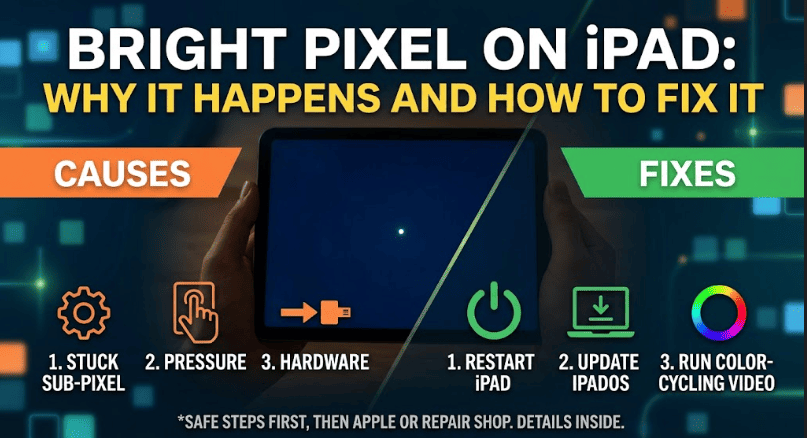
You are reading in bed, the screen is dark, and one tiny dot refuses to go away. A bright pixel on your iPad is small, but it is hard to ignore once you notice it. The good news is that it does not always mean your tablet is dying. The key is to work out which type of bright spot you have, because each type has a different fix.
Quick answer: A bright pixel on an iPad is usually a stuck sub-pixel, a pressure spot caused by internal parts pushing on the display, or a hardware defect. Restarting, updating iPadOS and a short color-cycling test can fix a stuck pixel. A pressure spot or defect normally needs Apple or a repair shop.
What Is a Bright Pixel on an iPad?
Your iPad screen is made of millions of pixels. Each pixel has red, green and blue sub-pixels. If one of them stays “on”, you see a tiny white, red, green or blue dot that stays in the same place no matter what app you open.
People also use phrases like bright spot, white dot or white spot for the same thing, but they can mean different problems:
| Type | What it looks like | Usual cause |
|---|---|---|
| Stuck pixel | Sharp, tiny, one-point dot | Sub-pixel stuck on |
| Dead pixel | Black dot that never lights | Pixel lost power |
| Pressure or backlight spot | Soft, glowing, larger patch | Parts pressing on the LCD, uneven backlight |
| Debris or defect | Fixed speck or patch | Dust under glass or panel fault |
Why Does a Bright Pixel Appear on an iPad?
1. Stuck sub-pixel. The most common cause of a sharp dot. It is often visible on dark backgrounds.
2. Pressure on the display. Squeezing the iPad in a tight bag or putting weight on it can push internal parts against the screen layers and leave a glowing patch.
3. Internal components. Many owners of the iPad Pro 10.5-inch (2017) reported a bright patch about an inch or two above the Home button. Apple Community and MacRumors users link it to the position of internal parts such as the logic board connectors and batteries. This is user-reported, not an official Apple explanation.
4. Backlight problems. On LCD iPads, aging or uneven backlight can show up as a bright, blurry area.
5. Manufacturing defect or damage. A drop, a hit or a factory fault can create a permanent spot.
How to Test Your iPad Bright Pixel (Do This First)
- Solid color test. Open a full black image, then a white one. A stuck pixel looks sharp. A pressure spot looks soft.
- Screenshot test. Take a screenshot with the dot visible and open it on another device. If the dot is not in the screenshot, the problem is in the screen hardware, not the software.
- Position test. Rotate the iPad and switch apps. A true bright pixel stays in the same physical place on the screen.
How to Fix a Bright Pixel on iPad
Start with the safest step and stop when the dot disappears.
- Restart your iPad. Power off, wait about 30 seconds, then turn it on.
- Update iPadOS. Go to Settings, General, Software Update.
- Run a color-cycling video or pixel fixer. Play a full-screen color cycling video for 15 to 30 minutes at normal brightness. Warning: rapidly flashing colors can trigger seizures in people with photosensitive epilepsy, so skip this method if that applies to you.
- Try gentle pressure (last resort, optional). Turn the iPad off, put a clean microfiber cloth over the spot and press very lightly for a few seconds. Too much force can crack the screen or make the spot worse.
- Reduce its visibility. Dark Mode and a wallpaper that hides the dot can make it less noticeable while you decide on repair.
- Back up, then reset. If the dot appears only in some apps or screenshots, a backup and reset can help rule out software.
LCD vs OLED: Why It Matters
Older iPads and iPad Air models use LCD screens with a backlight, so pressure and backlight spots are common there. The iPad Pro models released in 2024 use OLED, where each pixel makes its own light. A sharp dot on an OLED iPad is more likely a pixel fault than a backlight issue, and it cannot be “massaged” away. If the dot stays after the safe steps, treat it as a warranty or repair matter.
Is a Bright Pixel Covered by Warranty?
It can be, but it depends on your model, your region and the condition of the device. Check your coverage on Apple’s support site, or book a Genius Bar or Authorized Service Provider visit. Apple can run diagnostics and tell you whether it is a pixel defect or a panel problem. Take clear photos of the spot on a black and a white screen, and back up your data first. If your warranty has ended, ask for the price of a display replacement from Apple and compare it with a reputable repair shop that offers a repair warranty.
How to Prevent Bright Spots on Your iPad
- Do not stack books or heavy items on your iPad or squeeze it into a packed bag.
- Use a sturdy case that does not let the body flex.
- Keep it away from heat and avoid leaving it in a hot car.
- Add a screen protector to guard against scratches and dust.
- Avoid pressing hard on the screen when cleaning it.
When to See a Professional
Get it checked if the dot is getting bigger, the spot is soft and glowing, there are several spots, you see lines or color patches, or the iPad was dropped. Do not open the device yourself, as the display is fragile and glued in place.
FAQs
What is a bright pixel on an iPad?
It is a dot or small area on the screen that stays brighter than its surroundings, caused by a stuck sub-pixel, pressure on the display or a hardware fault.
Can a bright pixel fix itself?
A stuck pixel sometimes fades, but pressure spots and defects rarely go away without repair.
Is a bright pixel dangerous?
No. It does not affect touch, speed or battery. It is mainly a visual annoyance.
Does a screen protector cause a bright pixel?
No. A protector can hide small scratches or dust, but it does not create a bright pixel. Remove it and re-check to be sure.
How much does it cost to fix?
It varies by model and warranty status, so get a quote from Apple or a trusted repair shop.
Final Thoughts
A bright pixel on your iPad is usually a small problem with a clear path: test it, try the safe fixes, and move to Apple or a good repair shop if it stays.