How to Add Superscript in Word (5 Easy Methods + Keyboard Shortcuts)

What Is Superscript in Word?
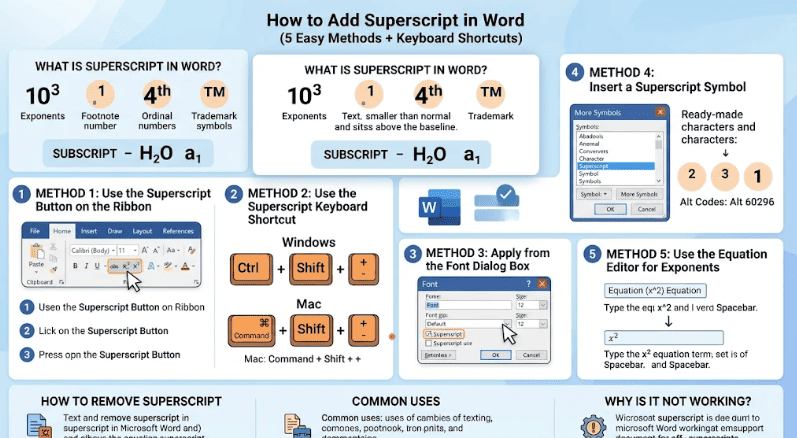
Superscript is text that is smaller than normal and sits slightly above the baseline. You see it in exponents (like 10³), footnote markers, ordinal numbers (like 4th), and trademark symbols (like ™).
Subscript is the opposite. It sits slightly below the baseline and is used mostly in chemical formulas (like H₂O) and mathematical indices (like a₁).
Method 1: Use the Superscript Button on the Ribbon
This is the easiest method for beginners because you can see the button right on the screen.
- Open your Word document.
- Select the number or letter you want to raise.
- Click the Home tab.
- In the Font group, click the x² (Superscript) button.
The selected text moves above the line immediately. For subscript, click the x₂ button next to it instead.
Method 2: Use the Superscript Keyboard Shortcut
If you format text often, a shortcut is much faster than reaching for the mouse.
| Action | Windows | Mac |
|---|---|---|
| Superscript | Ctrl + Shift + + | Command + Shift + + |
| Subscript | Ctrl + = | Command + = |
How to use it: Select your text, press the shortcut, and the formatting is applied.
Typing without selecting first: You can also press the shortcut before typing. Word switches superscript on, you type your character, and then you press the same shortcut again to switch it off and continue at normal size.
On many laptops the plus sign needs the Shift key already, so the full combination feels like Ctrl + Shift + the plus key. If it does not respond, try the plus key on the number row rather than the numeric keypad.
Method 3: Apply Superscript from the Font Dialog Box
The Font dialog box gives you more control, including the ability to fine-tune the height of the raised text.
- Select the text.
- Press Ctrl + D (or click the small arrow at the bottom-right of the Font group).
- Under Effects, tick Superscript (or Subscript).
- Click OK.
Pro tip: Open the Advanced tab in the same dialog and change the Position setting to Raised and choose a custom value in points. This lets you lift text without shrinking it, which is useful for custom design work.
Method 4: Insert a Superscript Symbol
Sometimes you only need a ready-made character such as ², ³, or ¹. Word has them built in.
- Click where you want the symbol.
- Go to Insert > Symbol > More Symbols.
- Set the font to (normal text).
- In the Subset list, choose Superscripts and Subscripts.
- Select the character and click Insert, then Close.
Alt code shortcut (Windows): Hold Alt and type the code on the numeric keypad: Alt + 0178 gives ², Alt + 0179 gives ³, and Alt + 0185 gives ¹.
This method is handy because the character stays as superscript even if you paste it into an email or a plain-text field.
Method 5: Use the Equation Editor for Exponents
For longer maths expressions, formatting each exponent by hand becomes tiring. The equation tool does it automatically.
- Press Alt + = to insert an equation box.
- Type x^2 and press the Spacebar.
- Word converts it into x with a raised 2.
This is the cleanest option for academic papers, worksheets, and exam material.
How to Add Superscript in Word on Mac
The steps are almost identical. Select the text, go to Home, and click the x² button, or press Command + Shift + +. For subscript, press Command + =. The Font dialog box opens with Command + D.
How to Add Superscript in Word Online
In Word for the web, select your text and use the superscript button in the Home tab’s font controls. If you cannot see it, click the More font options (three-dot) menu in the ribbon. The standard keyboard shortcuts also work in most browsers.
How to Add Superscript in Word on Mobile
Open the document in the Word app, tap the text to select it, tap the A with a pencil (Home/Format) icon, and look for the superscript option in the font tools. The exact layout changes between Android, iPhone, and iPad versions, so look for the x² icon.
How to Remove Superscript or Subscript in Word
There are three quick ways to undo it:
- Shortcut: Select the text and press Ctrl + Spacebar to reset it to normal formatting.
- Toggle: Select the text and click the x² button again.
- Font dialog: Press Ctrl + D and untick Superscript.
Note that Ctrl + Spacebar clears all manual character formatting from the selection, such as bold or italic, not only the superscript.
Common Uses of Superscript in Word
- Exponents and powers: x², 10⁶, m³
- Footnote and reference numbers: Word’s built-in footnotes use superscript numbers automatically.
- Ordinal numbers: 1st, 2nd, 3rd, 4th
- Trademark and registered symbols: ™ and ®
- Units: m², cm³, km²
- Chemical charges and isotopes: Ca²⁺, ¹⁴C
For chemical formulas such as H₂O and CO₂, use subscript instead of superscript.
Why Is Superscript Not Working in Word?
If the button or shortcut does nothing, check these common causes:
- No text is selected. Select the character first, or press the shortcut before typing.
- The document is protected. Read-only or restricted editing prevents formatting changes. Go to Review > Restrict Editing to check.
- The shortcut was reassigned. Another add-in or custom keyboard setting may have taken the key combination. Use the ribbon button as a backup.
- Wrong key was used. Make sure you press the plus key, not only the minus or equals key.
- Word is in Compatibility Mode. Save the file in a current format such as .docx and reopen it.
How to Stop Word from Auto-Superscripting Ordinals
By default, Word turns “1st” into 1ˢᵗ as you type. To turn this off:
- Go to File > Options > Proofing.
- Click AutoCorrect Options.
- Open the AutoFormat As You Type tab.
- Untick Ordinals (1st) with superscript.
- Click OK.
Many style guides prefer ordinals without superscript, so this setting is worth knowing.
Tips for Cleaner Superscript Formatting
- Superscript only the characters that need it, not the whole word.
- Keep consistent formatting across the whole document for a professional finish.
- Use real footnotes (References > Insert Footnote) instead of typing and raising numbers by hand.
- Use the Equation Editor when a line contains several exponents.
- Avoid copying superscript text from websites, since it may paste as special Unicode characters that look different in some fonts.
Frequently Asked Questions
What is the shortcut for superscript in Word?
The shortcut is Ctrl + Shift + + on Windows and Command + Shift + + on Mac.
What is the shortcut for subscript in Word?
Press Ctrl + = on Windows or Command + = on Mac.
How do I type a small number above a word in Word?
Select the number and click the x² button on the Home tab, or press the superscript shortcut before typing the number.
How do I put a square symbol (²) in Word?
Use Alt + 0178 on Windows with the numeric keypad, insert it from Insert > Symbol, or type the 2 and apply superscript.
How do I remove superscript in Word?
Select the text and press Ctrl + Spacebar, or click the superscript button again.
What is the difference between superscript and subscript?
Superscript sits above the text line (x²). Subscript sits below it (H₂O).
Conclusion
Now you know how to add superscript in Word in five different ways. For everyday work, the Ctrl + Shift + + shortcut is the fastest. The x² button is best for beginners, the Font dialog box gives fine control, the Symbol menu is ideal for ready-made characters, and the Equation Editor is perfect for maths.
Pick the method that suits your task, and your documents will look clean, accurate, and professional.