
In competitive gaming, the difference between victory and defeat often comes down to milliseconds and pixel-perfect accuracy. Every flick shot, every precise cursor placement, and every rapid movement demands a level of control that only the right equipment can deliver. A high-precision wireless mouse. has emerged as a true game-changer for eSports players, offering the freedom of untethered movement without sacrificing the responsiveness that competitive play demands. Yet many gamers struggle with inconsistent sensitivity settings, input lag, and configurations that fail to unlock their mouse’s full potential. This article serves as your comprehensive guide to optimizing your gaming setup for peak performance. Whether you’re battling in fast-paced shooters or commanding armies in strategy games, understanding how to fine-tune mouse sensitivity, leverage adjustable DPI settings, and configure your computer properly will elevate your gameplay. We’ll walk through everything from foundational concepts to practical calibration steps that put you in complete control of your precision.
Understanding High-Precision Wireless Mice: The Foundation for Gaming Success
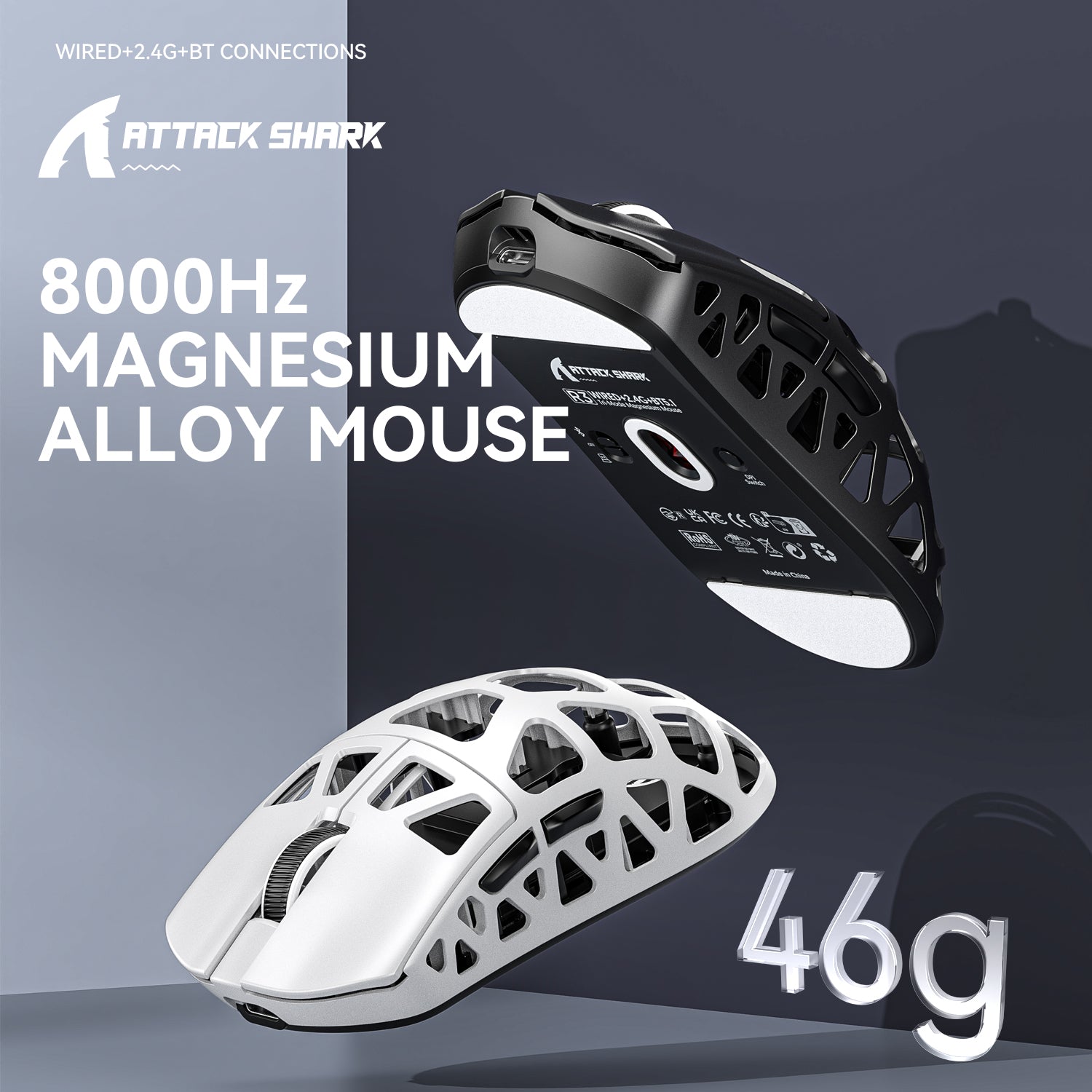
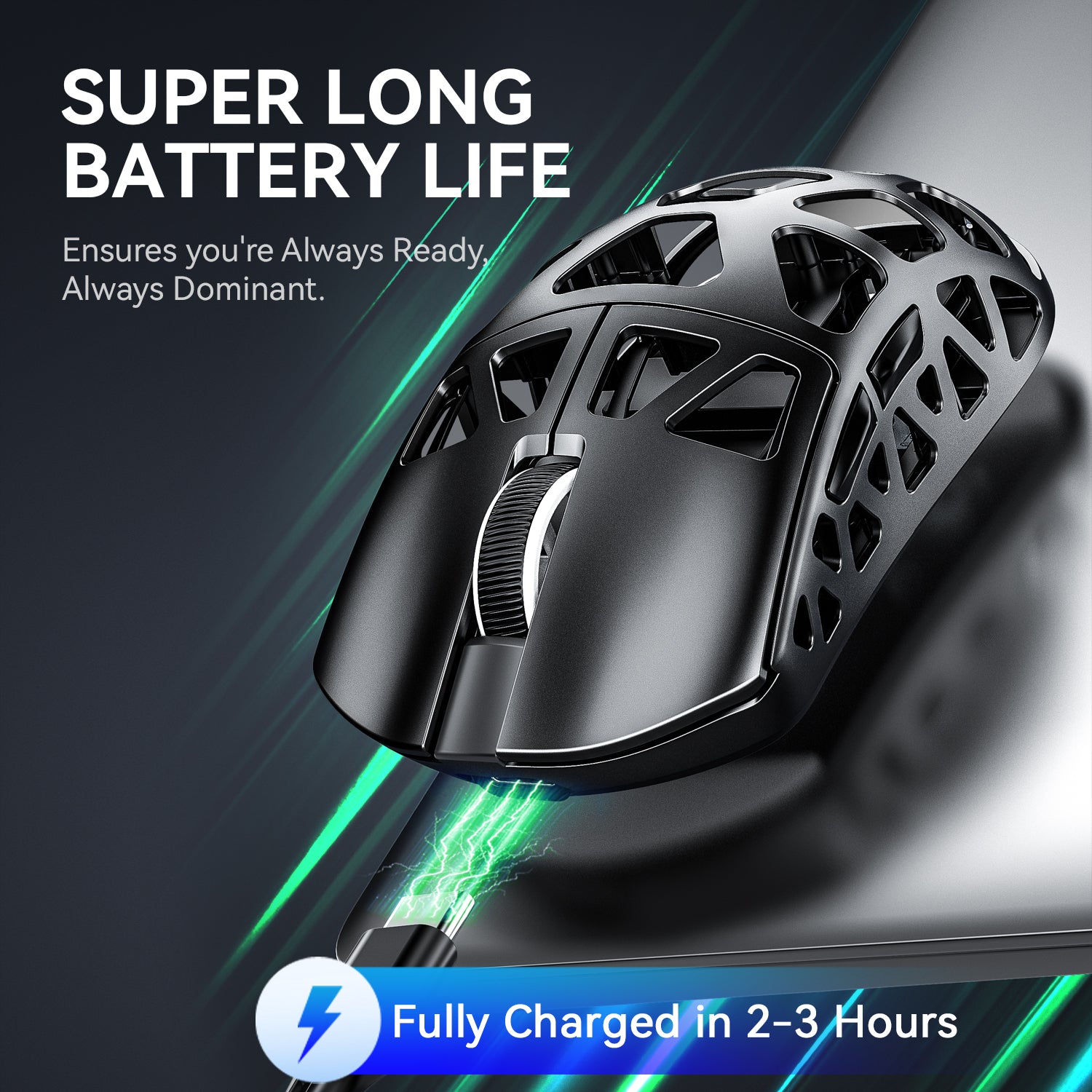
A high-precision wireless mouse distinguishes itself through advanced optical or laser sensor technology capable of tracking movements with extreme accuracy across virtually any surface. Modern sensors eliminate the acceleration and jitter that plagued earlier wireless models, while proprietary wireless protocols now deliver signal transmission at speeds rivaling or exceeding wired connections—often achieving latency as low as one millisecond. This breakthrough means gamers no longer sacrifice responsiveness for the freedom of cable-free movement, gaining unrestricted range of motion that proves especially valuable during intense sweeping motions in FPS games. Key specifications define gaming performance in meaningful ways. Polling rates of 1000Hz or higher ensure your system registers cursor position updates every millisecond, creating buttery-smooth tracking during rapid flicks. Battery technology has also matured significantly, with many high-end models delivering 70+ hours of continuous play on a single charge, eliminating mid-session interruptions. The combination of lightweight construction, lag-free connectivity, and precise sensor tracking creates a foundation where your physical skill translates directly into in-game results without hardware limitations holding you back.
Mastering Mouse Sensitivity and Adjustable DPI for Different Gaming Styles
Mouse sensitivity and adjustable DPI work together as the primary controls governing how your physical hand movements translate into on-screen cursor behavior. DPI—dots per inch—measures how many pixels your cursor travels for every inch you move the mouse physically. A higher DPI means faster cursor movement with less physical effort, while a lower DPI demands larger hand movements but delivers finer control over precise positioning. Understanding this relationship is essential because the ideal sensitivity varies dramatically depending on what you’re playing and how you play it.
For fast-paced first-person shooters, most professional players gravitate toward lower DPI settings combined with large mouse pads, allowing them to make sweeping arm movements for 180-degree turns while maintaining the granular control needed for headshots. Real-time strategy and MOBA players typically benefit from higher sensitivity since they need to traverse large screen areas quickly to manage units and abilities. The key is finding your personal sweet spot through deliberate testing rather than copying someone else’s settings blindly.
Start by setting your mouse to a moderate DPI and entering a practice mode in your preferred game. Attempt tracking a moving target smoothly—if you consistently overshoot, lower your sensitivity; if you struggle to keep up, increase it. Repeat this process in small increments, giving yourself at least 30 minutes at each setting before judging its effectiveness. Your muscle memory needs time to adapt, so resist the urge to change settings after every missed shot.
Tailoring DPI Settings to Your Gaming Preferences
Competitive FPS players typically perform best between 400-800 DPI with in-game sensitivity adjusted to achieve an effective DPI (eDPI) that allows a full 360-degree turn across 25-50 centimeters of mouse pad. Strategy gamers often run 1200-3200 DPI for rapid map navigation. Brands like ATTACK SHARK offer gaming mice with companion software that lets you create multiple DPI profiles switchable via onboard buttons—configure distinct profiles for each genre you play rather than constantly readjusting a single setting. Avoid the common mistake of maxing out DPI thinking faster equals better; excessively high values amplify hand tremors and introduce pixel skipping that destroys accuracy.
Optimizing Computer Configuration for Enhanced Polling Rates and Performance
Your high-precision wireless mouse can only perform as well as the system it connects to. Computer configuration plays a surprisingly significant role in how effectively your mouse communicates with your games, and overlooking this aspect means leaving performance on the table. The polling rate—how frequently your mouse reports its position to your computer—depends heavily on your system’s ability to process those updates without bottlenecks or delays.
Your CPU handles the processing of input signals, and an overtaxed processor can introduce micro-stutters that manifest as inconsistent cursor behavior during intense gameplay moments. Ensure your CPU isn’t running at maximum utilization during gaming sessions by closing unnecessary background applications, particularly resource-heavy programs like browsers with multiple tabs, streaming software, or cloud sync services. RAM availability matters too; when your system starts paging to disk, input processing suffers noticeably. Maintaining at least 4GB of free RAM during gameplay helps ensure smooth input handling.
 USB port selection directly impacts polling rate stability for your wireless receiver. USB 3.0 ports occasionally introduce electromagnetic interference that affects 2.4GHz wireless signals, so try connecting your mouse’s receiver to a USB 2.0 port positioned away from other USB devices. Many manufacturers recommend using a USB extension cable to place the receiver closer to your mouse, reducing signal distance and potential interference from your PC’s chassis. Within your operating system, navigate to device manager and verify your mouse is actually operating at its advertised polling rate—Windows sometimes defaults to 125Hz regardless of hardware capability. Dedicated driver software from your mouse manufacturer typically overrides this limitation, but keeping both firmware and drivers current ensures you benefit from the latest optimizations and bug fixes that directly affect polling rates and tracking consistency.
Troubleshooting Common Configuration Problems
If you experience intermittent tracking stutters, check your power management settings first—Windows often reduces USB power to save energy, causing momentary signal drops. Disable USB selective suspend in your power plan’s advanced settings to maintain constant receiver power. Background processes like Windows Update or antivirus scans can spike CPU usage unpredictably, so schedule these outside gaming hours. When your mouse feels laggy despite correct polling rate settings, verify that no overlay software or game capture tools are introducing input processing delays, and test with them disabled to isolate the cause.
Step-by-Step Guide to Setting Up Your High-Precision Wireless Mouse
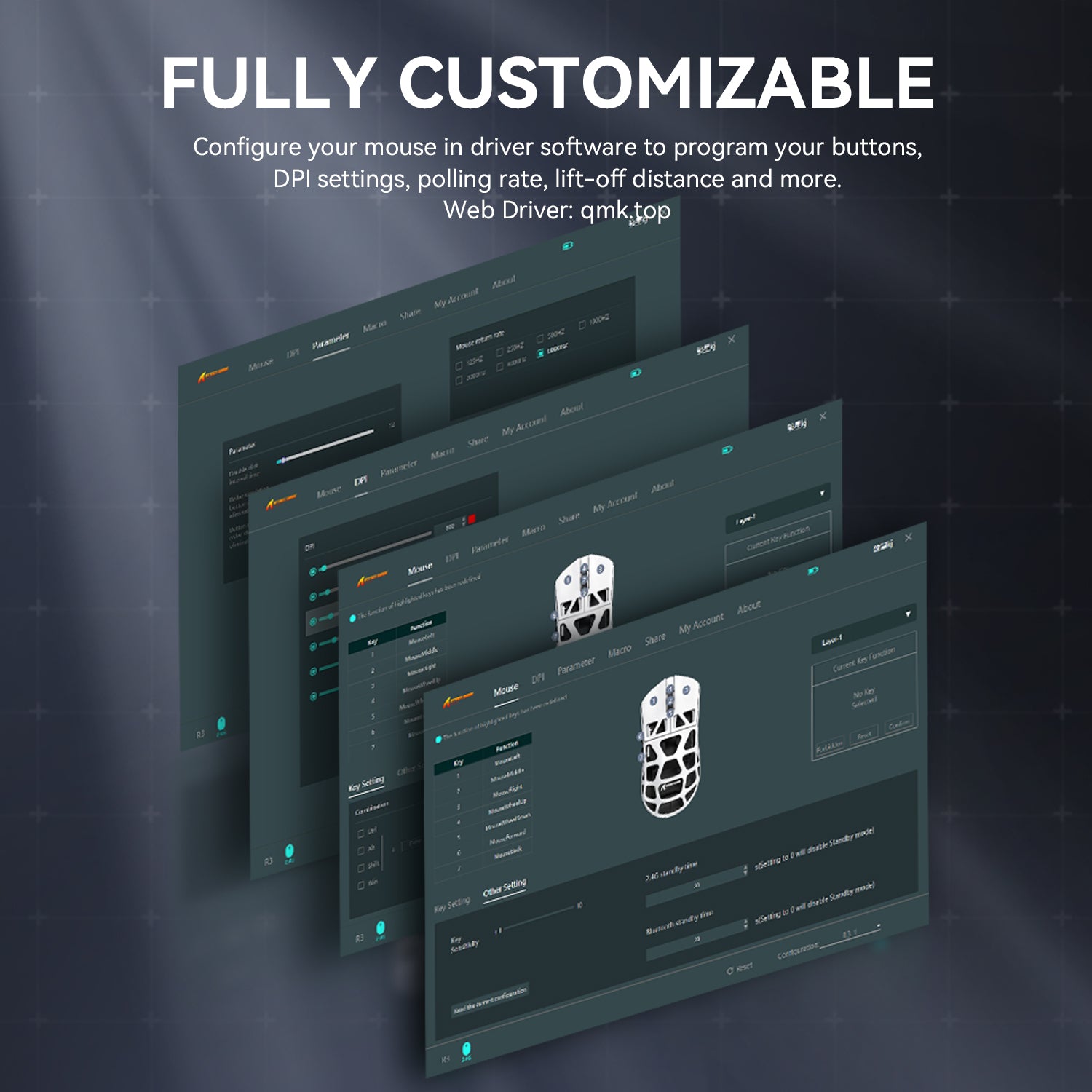
Getting your high-precision wireless mouse from box to battle-ready requires a methodical approach that ensures every feature works at its full potential from day one. Begin by connecting the wireless receiver to your chosen USB port—preferably a USB 2.0 port on the front of your case or via an extension cable positioned on your desk near your mouse pad. Power on the mouse and allow your operating system to detect it, but resist the temptation to start gaming immediately. Your first task is installing the manufacturer’s companion software, which unlocks the full range of customization options including DPI adjustment, polling rate control, button remapping, and surface calibration that the generic Windows driver simply cannot provide.
Once the software is installed and your mouse firmware is updated to the latest version, begin building your DPI profiles. Create at least two distinct configurations: one tuned for your primary competitive game and another for general desktop use or secondary genres. Set your polling rate to the maximum supported value—typically 1000Hz—and configure your preferred button mappings. With profiles saved to onboard memory, your settings travel with the mouse regardless of which computer you connect to, ensuring consistency whether you’re practicing at home or competing at a LAN event.
After initial configuration, enter your main game’s practice mode and spend dedicated time testing your settings under realistic conditions. Move through aim training routines, track bots, and simulate actual match scenarios. Pay attention to whether movements feel natural and whether you can consistently hit targets at various distances. Adjust DPI in increments of 50-100 rather than making dramatic jumps, and give each adjustment adequate time before evaluating results. Maintenance matters for long-term performance—clean your sensor lens monthly with compressed air, keep your mouse pad free of debris, and check for software updates every few weeks to benefit from tracking algorithm improvements.
Calibration and Testing for Optimal Performance
Many companion applications include surface calibration tools that tune the sensor’s lift-off distance and tracking behavior to your specific mouse pad material. Run this calibration whenever you change pads or notice inconsistent tracking near the edges of your surface. For benchmarking responsiveness, use online input lag testers or dedicated tools like MouseTester to visualize your polling rate consistency and confirm your mouse reports at the expected frequency without drops. In-game, establish personal accuracy benchmarks by recording your hit percentage during aim training sessions over a week—this data reveals whether your current configuration genuinely improves performance or needs further refinement.
Unlock Your Competitive Edge Through Optimized Mouse Performance
A high-precision wireless mouse represents more than just a peripheral upgrade—it’s a fundamental investment in your competitive gaming potential. The freedom of wireless movement combined with sensor technology that rivals wired performance means your hardware no longer limits what your skills can achieve. Throughout this guide, we’ve explored how understanding your mouse’s capabilities forms the foundation, how deliberately tuning mouse sensitivity and adjustable DPI settings to match your gaming style transforms raw aim into consistent accuracy, and how proper computer configuration ensures every millisecond of responsiveness reaches your screen without system-level bottlenecks stealing performance.
The path to improvement isn’t about finding one perfect setting and never touching it again. It’s an iterative process of testing, adjusting, and building muscle memory through deliberate practice. Apply the calibration steps outlined here, commit to tracking your accuracy over time, and revisit your configuration as your skills evolve. The competitive edge in eSports belongs to players who refuse to leave performance gains untapped—your optimized setup is the platform from which every clutch play and tournament victory begins.