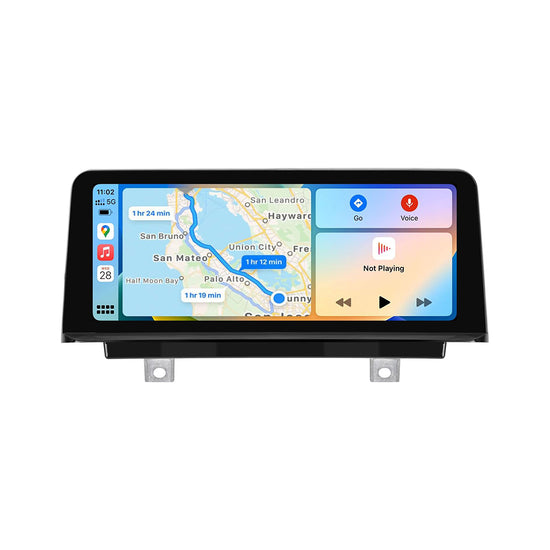
You hop in your BMW, plug in your iPhone, and nothing happens. No CarPlay screen, no familiar interface — just the same aging iDrive display staring back at you. It’s a frustration shared by countless BMW owners, especially those driving models that either predate Apple CarPlay support or suffer from persistent connectivity issues that no software update seems to fix.
The good news is that a CarPlay retrofit offers a practical, modern solution. Rather than trading in your vehicle or paying dealer prices for a factory upgrade, a retrofit kit lets you bring full Apple CarPlay functionality — and often Android Auto as well — to your existing BMW infotainment system. The result is seamless smartphone integration, real-time navigation, voice control, and access to your favorite apps, all from a clean, responsive touchscreen.
Whether you’re a seasoned DIY enthusiast or tackling your first car modification, this step-by-step guide walks you through everything you need to know — from choosing the right kit for your specific BMW model to completing the installation with confidence.
Why Your BMW Won’t Connect to CarPlay
If your BMW won’t connect to CarPlay, you’re likely dealing with one of a handful of recurring culprits. Outdated iDrive software is the most common offender — BMW has released multiple firmware updates over the years, and running an older version can block CarPlay from initializing properly. Hardware incompatibility is another significant barrier, particularly in pre-2017 models that simply weren’t built with CarPlay support in mind. Bluetooth pairing conflicts, faulty USB ports, and corrupted phone profiles can also interrupt what should be a straightforward connection. In some cases, the issue isn’t the car at all — a damaged Lightning or USB-C cable is enough to prevent handshake between your iPhone and the iDrive system. A CarPlay retrofit directly addresses the deeper problem: when your vehicle’s infotainment hardware is fundamentally incompatible with modern smartphone integration, no software patch will resolve it. Retrofitting replaces or supplements the existing system with hardware designed specifically to support CarPlay, eliminating the root cause rather than chasing temporary fixes.

Understanding CarPlay Retrofit and Its Types
A CarPlay retrofit is a hardware upgrade that adds Apple CarPlay — and typically Android Auto — to a BMW that either lacks native support or suffers from persistent connectivity limitations. Rather than replacing your entire infotainment system, most retrofit solutions integrate directly with your existing iDrive setup, using plug-and-play modules or replacement screens that communicate with your car’s CAN bus network.
There are three main retrofit types worth knowing. The first is a plug-in CarPlay module, which connects via USB or LVDS and overlays CarPlay onto your existing display — minimal invasiveness, but limited screen real estate. The second is a BMW Android screen replacement, which swaps your factory display for a unit running a full Android-based OS, giving you CarPlay, Android Auto, native apps, and internet connectivity in one package. The third option is a Linux screen, a more stable, lightweight alternative to Android-based units that prioritizes system reliability and faster boot times over app flexibility. For vehicles with tight dashboard clearance, an ultra-thin screen variant is available, maintaining a factory-flush appearance without sacrificing functionality. Suppliers like PEMP Car Audio offer model-specific kits across all three categories, making it easier to match the right solution to your exact iDrive generation. Your best choice depends on how deeply you want to integrate new features versus preserving your original iDrive experience.
Compatibility Guide for BMW Models
Not every BMW requires the same retrofit approach, and confirming compatibility before purchasing a kit saves both time and money. Generally speaking, BMW models from the 1 Series, 2 Series, 3 Series, 4 Series, 5 Series, 6 Series, 7 Series, X1, X3, X5, and X6 — spanning model years from roughly 2010 through 2020 — are supported by most retrofit solutions currently on the market. The specific iDrive version your car runs is the most critical compatibility factor. iDrive 4 and iDrive 6 systems have different connector types, display resolutions, and CAN bus configurations, meaning a kit designed for one won’t necessarily work with the other.
Screen size and dashboard clearance also matter. Older BMW cabins with shallower display housings benefit from ultra-thin screen options, which are engineered to fit within tight factory tolerances while still delivering a full-resolution CarPlay experience. If your vehicle runs NBT (Next Big Thing) or EVO head units, plug-in modules are often the most straightforward path. CIC-equipped models may require a full screen replacement for stable performance. Before committing to any kit, cross-reference your car’s production date, VIN, and iDrive generation — most reputable retrofit suppliers provide compatibility checkers to simplify this step.
Tools and Materials Needed for Installation
Before touching a single panel, gather everything you’ll need to avoid mid-installation stops. On the tools side, you’ll want a set of plastic trim removal pry tools, a Torx screwdriver set (T10, T20, T25 are most common in BMWs), a panel popper, and a multimeter for verifying connections. A trim clip remover prevents cracked dashboard panels that are expensive to replace. For materials, have your retrofit kit, all included harness adapters, a quality USB cable, and zip ties or cable management clips ready. Safety first: keep a microfiber cloth handy to protect your screen during handling, and work in a well-lit space. Read through your specific kit’s instruction manual completely before starting — connector layouts vary between iDrive generations, and knowing what to expect eliminates costly mistakes.
Step-by-Step Installation Guide for CarPlay Retrofit
Pre-Installation Preparation
Start by disconnecting the negative battery terminal and letting the vehicle sit for at least 15 minutes — this resets residual electrical charge and protects sensitive CAN bus components. Lay out all tools and kit contents on a clean surface, then read through the included instruction manual one final time before picking up a single pry tool.
Removing the Old Infotainment Components
Begin at the screen bezel, inserting your plastic trim pry tool at the lower corner and working slowly around the perimeter to release each clip without cracking the surround. Once the bezel is free, locate the Torx screws securing the display bracket — typically T20 on most iDrive generations — and remove them carefully. Disconnect the LVDS video cable and power harness by pressing the release tab firmly before pulling; forcing these connectors sideways snaps the locking tab and creates a loose connection later. Set the factory screen face-down on a microfiber cloth while you work.
Installing the New Retrofit Kit
Connect the included harness adapter to your car’s existing LVDS and CAN bus connectors first — these carry both video signal and vehicle data to the new unit. If you’re installing a BMW Android screen, attach the USB hub module to the secondary harness before mounting the display, since accessing the rear port after installation is difficult. For an ultra-thin screen, align the mounting bracket carefully within the factory housing before tightening any screws, confirming the display sits flush with the dashboard surface. Route all cables behind the dash using the factory wire channels, securing loose runs with zip ties every six inches to prevent vibration rattle. Plug in your antenna adapter if your kit includes one, then seat the new screen into the bracket and reconnect the bezel clips.
Testing and Finalizing the Setup
Reconnect the battery terminal and power on the vehicle without reassembling the full dashboard — this lets you address any issues before panels are locked back in place. Connect your iPhone via USB and confirm the CarPlay interface launches within 10 seconds. Test Android Auto with a compatible device if your kit supports it. Navigate through several app screens, verify audio output through the factory speakers, and check that steering wheel controls respond correctly. Once everything functions properly, press all trim panels firmly back into place until each clip clicks, then do a final wipe-down of the new screen with a microfiber cloth.
Troubleshooting Common Installation Issues
Even a careful installation can surface unexpected problems. If CarPlay fails to launch after connecting your iPhone, start by checking the USB cable — a worn or uncertified cable is the most frequent culprit. No display signal usually points to a loose LVDS connector; power down, reseat the cable firmly, and retry. Intermittent connection drops often stem from a CAN bus adapter that isn’t fully seated in its housing, so press each connector until you feel a positive click. For Android Auto recognition failures, verify that the Google app and Android Auto app are both updated on your device. Software glitches like a frozen boot screen typically resolve with a hard reset — disconnect the battery for 60 seconds, then reconnect. If steering wheel controls aren’t responding, your kit may require a separate coding step via BMW’s OBD port using a compatible diagnostic tool. Persistent issues that don’t respond to these fixes warrant contacting your kit supplier’s technical support — brands like PEMP Car Audio provide dedicated support resources to help diagnose hardware-specific problems before assuming a defect.
Benefits of Upgrading Your BMW Infotainment System
Installing a CarPlay retrofit delivers immediate, tangible improvements to your daily driving experience. Real-time navigation through Apple Maps or Google Maps replaces outdated built-in systems, while Siri voice control lets you send messages, make calls, and adjust music without taking your hands off the wheel. Streaming services, podcasts, and hands-free communication all integrate seamlessly through your factory speakers. Beyond convenience, retrofitting future-proofs your vehicle — as smartphone ecosystems evolve, your infotainment system evolves with them through app updates rather than expensive hardware replacements. For BMW owners holding onto a well-maintained vehicle, this upgrade meaningfully extends the car’s relevance and resale appeal without the cost of a new purchase.
Transform Your BMW with a CarPlay Retrofit
Upgrading your BMW with a CarPlay retrofit transforms a frustrating connectivity gap into a genuinely modern driving experience. Throughout this guide, we’ve covered why older BMW infotainment systems struggle with CarPlay, how different retrofit types — plug-in modules, Android screens, and Linux-based units — each serve different needs, and how to confirm compatibility before spending a dollar. The step-by-step installation process, while detail-oriented, is well within reach for any DIY-minded owner willing to work carefully and methodically.
The payoff is real: seamless iPhone integration, reliable navigation, hands-free communication, and an infotainment system that keeps pace with your smartphone rather than falling further behind it. Once installed, keep your retrofit software updated whenever the manufacturer releases new firmware — this maintains compatibility with iOS updates and prevents the same connectivity headaches you started with. Periodically check cable connections if you notice intermittent drops, and use only certified USB cables to protect the module’s input hardware. Your BMW already delivers an exceptional driving experience; a CarPlay retrofit simply ensures the technology inside the cabin matches the quality of everything else. Take the first step today — your daily commute will thank you for it.